Connect Claude to Learniverse
Ask about your workspace and draft trainings from Claude — set up in two minutes, no key needed.
Connect Learniverse to Claude and you can ask, in plain words, who still has training to finish? or draft a forklift refresher for the warehouse team from our SOP — and Claude answers from your workspace. It sees only what your account can see, and it never publishes anything or messages your staff: that always stays in Learniverse.
Before you start:
- You are the workspace owner — only the owner can connect.
- The workspace is on an active paid plan. Trials and lifetime deals are not included.
- The assistant is switched on for your workspace. You cannot see this setting yourself: if it is off, the Learniverse page in step 3 tells you, and we turn it on when you ask.
Connect Claude
Set it up once on claude.ai or in Claude Desktop, and it is there in the Claude phone apps too.
Add a custom connector
In Claude, open Settings, then Connectors (under Customize). Choose + Add at the top right, then Add custom connector.
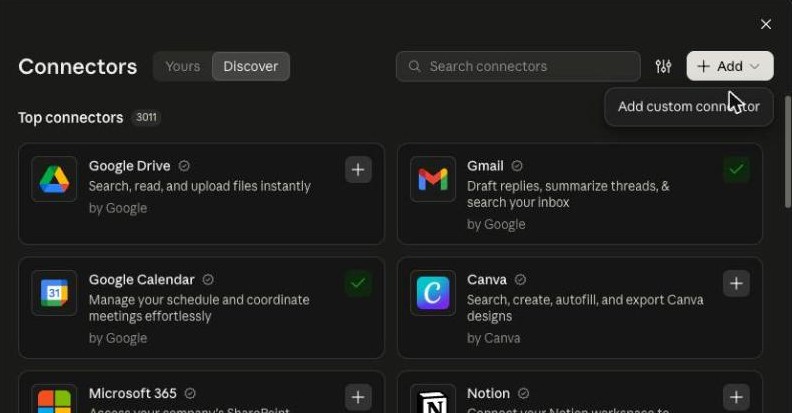
If you use Claude through your company's Team or Enterprise plan and do not see Add custom connector, your Claude admin may need to add it for the organization first.
Paste the Learniverse address
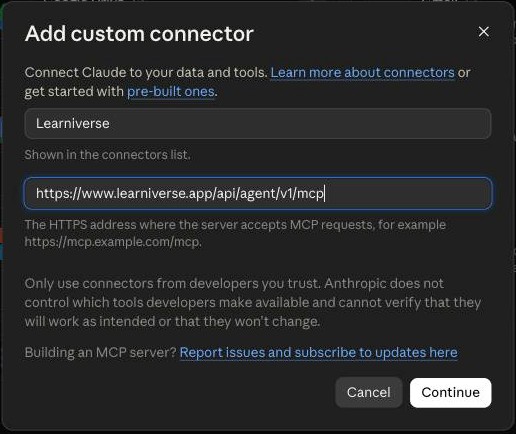
In the first box, type Learniverse. In the second — the web address Claude connects to — paste this exactly, then choose Continue:
https://www.learniverse.app/api/agent/v1/mcp
Allow access in Learniverse
A Learniverse page opens. Sign in if asked. Check that it names the workspace you want and that approval is sent to claude.ai, then choose Allow access. Signed in as the wrong person? Choose Use another account at the bottom.
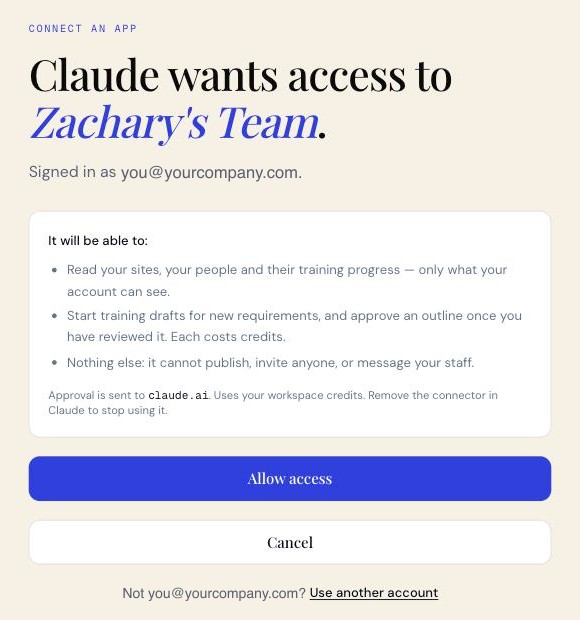
If you sign in with an emailed link or code and land on your dashboard instead, go back to Claude and choose Connect again. The page waits only a few minutes — if it says the request has expired, start again from Claude.
Choose when Claude asks first
Back in Claude, open the Learniverse connector to see its tools. For each one you can choose whether Claude asks before using it. We suggest setting Draft a requirement and its training and Approve a draft outline to Needs approval, so Claude checks with you before anything that costs 30 credits.
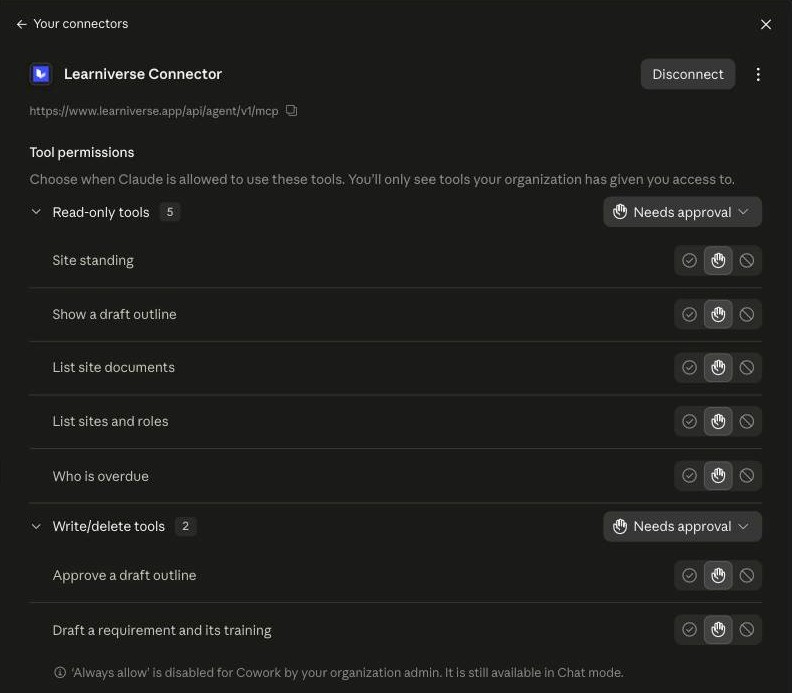
That's it. Start a new chat and ask away — you do not need to name the tools. If Claude does not seem to use Learniverse, check that Learniverse is switched on in the chat's tools menu.
Try it
Ask about your workspace
- Who still has required training to finish?
- Which site has the most people behind?
- Who still has to finish the sterilization training?
Draft a training
Tell Claude what is required, of whom and how often. To build it from your own procedure, upload the file to the site's library in Learniverse first, then name it — a file you attach in the Claude chat is not used:
Create a lift-truck safety requirement for warehouse operatives at Wincanton, yearly, due within 14 days of joining — build it from our SOP-WH-014.
Claude asks before each tool the first time, then creates the new training need (it appears on your Training needs page) and starts drafting the training that goes with it.
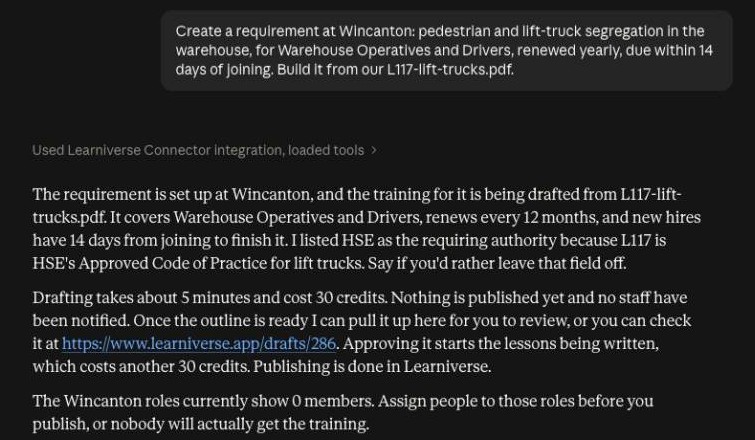
Drafting takes about five minutes, and Claude cannot tell you when it is done — come back to the same chat and ask show me the outline. If it is still drafting, Claude says so; ask again a minute later.
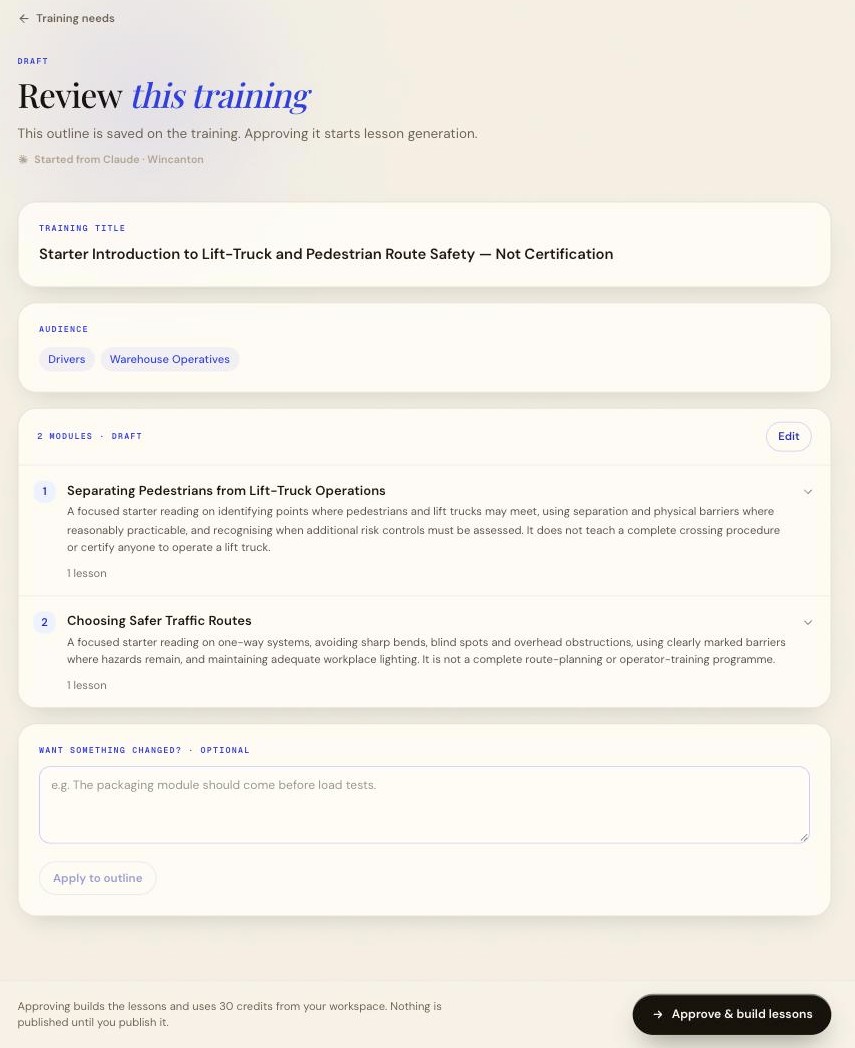
Claude then shows every module and lesson, the sources it used, and anything worth checking first — here, that the outline skips some of the behaviours asked for, and that it used more than the one file. Warnings from Learniverse, such as an outline written from general knowledge because no source was found, come first.
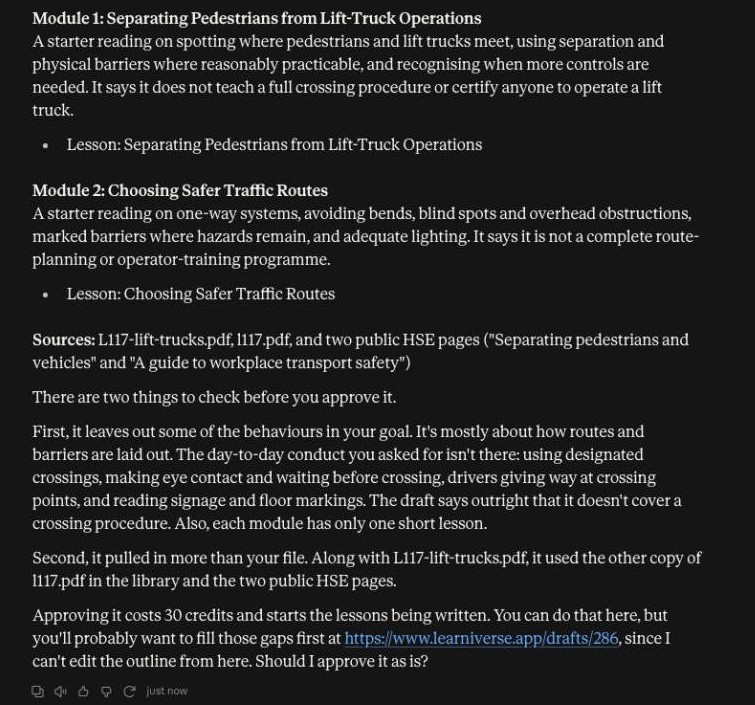
Approve it
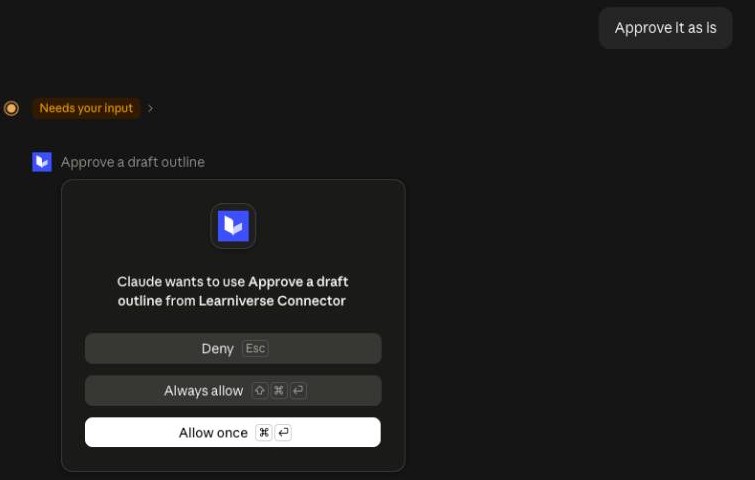
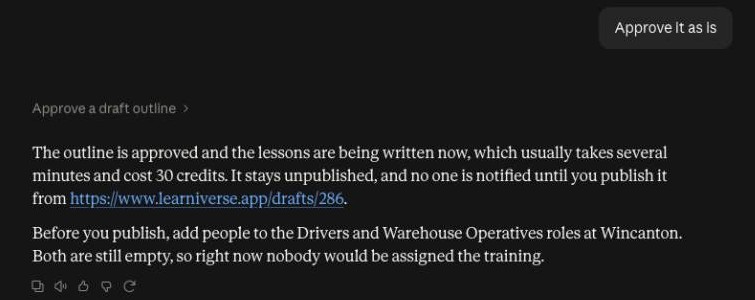
Want changes? Claude cannot edit the outline — open the link it gives you, edit or ask for a rewrite there, then come back. When it looks right, say approve. Claude asks your permission to use Approve a draft outline — allow it — and the lessons are written, which takes several minutes.
Prefer to decide in Learniverse? The link opens the same outline, marked Started from Claude — edit it there, or choose Approve & build lessons.
Publish in Learniverse
Once the lessons are written, the training waits, unpublished, in Learniverse. Open it from the link Claude gave you, look it over, and publish when you are ready. Publishing is what makes it live: the people it is required of get it, and your reminders start if they are switched on.
Credits
Everything the assistant does uses your workspace credits — the same balance course generation uses.
| Credits | |
|---|---|
| Each look-up Claude makes (a question often takes two or three) | 1 |
| Drafting a training | 30 |
| Approving the outline and writing the lessons | 30 |
Asking again for the same requirement within ten minutes returns the same draft at no charge. A workspace can have up to three drafts from Claude open at once — counting ones waiting for your approval, for a week — and start up to ten in any 24 hours. To free a slot, approve or finish an open draft.
When there are not enough credits, Claude says so: questions stop at zero, and drafting or approving needs the full 30. Buy more with Buy, next to your credit count at the bottom of the Learniverse sidebar, then ask Claude again.
What it can and cannot do
It can read your sites, your people, their required training and their progress; list a site's documents; draft a training for a new requirement; show you its outline; and — when you say so — approve that outline so the lessons are written.
It cannot publish, assign, remind, invite or message anyone, change a setting, edit a published training, or change a requirement that is already live. Anything that reaches your staff stays in Learniverse, where you can see it happen.
It never sees data your account cannot. If you can read three sites, so can Claude.
It approves only the outline you were shown. Approving is tied to the exact outline and sources Claude read out to you. If someone edited the outline in Learniverse since, Claude has to show you the new version before it can approve. If a source was added or removed after drafting, it cannot be approved from Claude at all — redraft it from the link Claude gives you.
Troubleshooting
"This account cannot use the assistant from Claude." Only the workspace owner can connect, on an active paid plan with the assistant switched on. Ask whoever owns the workspace, or ask us to switch the assistant on.
A tool is missing. Claude may still be using an older list of tools. Open the Learniverse connector in Claude's Connectors settings, choose ⋮ next to Disconnect, then Refresh tools list. You should see seven tools.
Claude says it cannot approve. It tells you why. Usually the outline is still being drafted (ask again in a minute), someone changed it or its sources since you saw it (ask to see it again), or it was already approved in Learniverse. You can always open the link Claude gives you and approve there.
"Not ready to use yet" for a document. Learniverse has not finished processing the file, or could not read any text from it. Wait a few minutes and try again; if it stays that way, upload the file again or leave it out. Claude never silently skips a file you asked for — it refuses the draft instead, before anything is charged.
To disconnect, remove the Learniverse connector in Claude and Claude stops using it. That does not cut anything off on the Learniverse side — to stop every connection from your workspace at once, ask us to switch the assistant off.
For developers: Claude Code, Cursor and the HTTP API
Claude Code signs in through the browser just like Claude — no key needed:
claude mcp add --transport http learniverse https://www.learniverse.app/api/agent/v1/mcp
Cursor, your own scripts and the HTTP API use a key instead.
Create a key
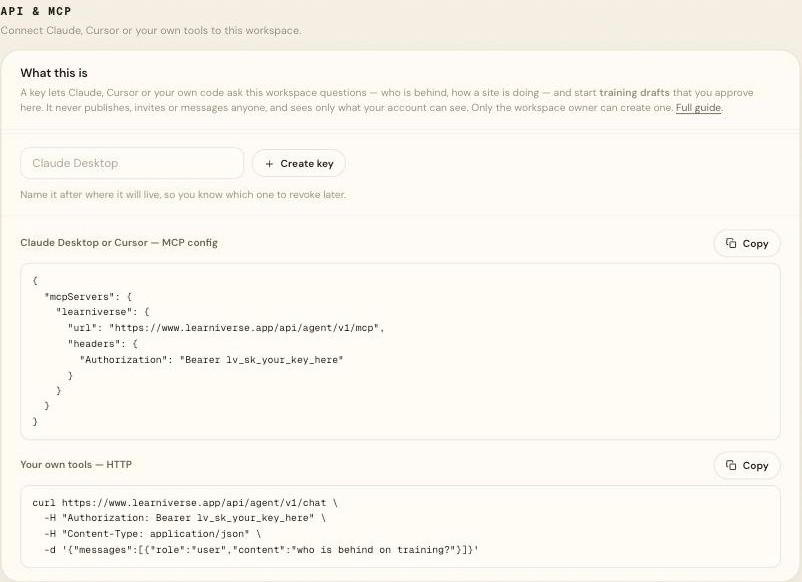
In Learniverse, open Settings → API & MCP, name the key after where it
will live, and choose Create key. Copy it straight away — it is shown once
and never again; we store only a hash of it. Keys start with lv_sk_ and act
as you. Only the workspace owner can create one, and a workspace can have five
active keys. Revoke a key there and it stops working immediately.
Note:
Treat a key like a password. Anyone holding it can read your workspace, start drafts and spend your credits. Never paste one into a shared document, a screenshot or a public repository.
MCP with a key
Add this to Cursor's MCP configuration — Settings shows it ready to copy:
{
  "mcpServers": {
    "learniverse": {
      "url": "https://www.learniverse.app/api/agent/v1/mcp",
      "headers": {
        "Authorization": "Bearer lv_sk_your_key_here"
      }
    }
  }
}
The server exposes these tools. Your model decides when to call them.
| Tool | What it does |
|---|---|
who_is_overdue | Who still has required training to finish, and how many, per site. Names come 25 per site at a time. |
academy_standing | How one site is doing: counts by state, who has finished, who is partway, the deadline. |
list_workspace | The sites you can create trainings in, with their roles. |
list_documents | A site's documents — name, type, date added, and whether each is ready to use. Never the text. |
create_requirement_draft | A new requirement plus its unpublished starter training. A same-named requirement is reused as it stands, or refused if it is already live. |
get_draft_outline | The outline, sources and warnings of a draft started here, with the outlineVersion to approve it — when it can be approved from here. |
approve_draft | Approves that exact outline (by outlineVersion) and writes the lessons. Never publishes. |
HTTP
The HTTP endpoint is read-only: send a question, get an answer.
curl https://www.learniverse.app/api/agent/v1/chat \
  -H "Authorization: Bearer lv_sk_your_key_here" \
  -H "Content-Type: application/json" \
  -d '{"messages":[{"role":"user","content":"who still has required training to finish?"}]}'
{
  "reply": "Six people total. One at Repentigny and five at Ste-Foy, all on Stérilisation.",
  "toolsUsed": ["who_is_overdue"],
  "credits": { "used": 2, "remaining": 1834 }
}
It keeps no conversation of its own — to ask a follow-up, send the earlier turns
back in messages. Only user and assistant messages are accepted.
Over HTTP a question is billed by how much text the assistant reads and writes —
one credit per 4,000 tokens read and per 2,000 written, at least one — so a
typical question costs about two. credits.used tells you what it cost.
| Limit | |
|---|---|
| Messages per request | 20 |
| Characters per message | 4,000 |
| Characters per request | 24,000 |
| Requests per key | 60 per hour |
| Active keys per workspace | 5 |
| Status | Meaning |
|---|---|
200 | Answered. credits.remaining tells you what is left. |
400 | The body was not valid, or exceeded a limit. |
401 | Missing, malformed, unknown, or revoked key. |
402 | Out of credits. |
403 | The assistant is not switched on for this workspace, or it is not on an active paid plan. |
413 | The body was too large. |
429 | Rate limit reached. Wait and retry. |
500 | The assistant could not answer. Safe to retry. |
About the text in results
Names, site names and course titles are typed by people. Before a value reaches a model we turn line breaks and control characters into spaces, drop invisible characters, remove text that imitates a chat or a code block, and cut very long values short. Over MCP, a result we had to change says so at the top. We do not judge meaning: treat every value in a result as data.